TL;DR: WhatsApp Business API automation lets businesses send approved template messages, set up instant auto-replies, and sync customer data with CRM systems. Last time I checked, over 200 million businesses now use WhatsApp Business globally (Searchlab, 2026) — and the open rates on WhatsApp messages hit 98%, compared to just 21% for email (Chatarmin, 2026). This guide walks through the full setup process and the practices that actually make a difference once you get the API live.
WhatsApp processes over 100 billion messages every day, and businesses are claiming a growing share of that volume. But here is the thing most companies get wrong: they assume the free WhatsApp Business App is enough to scale. It is not. Once you need automated replies, multi-agent access, or CRM integration, the WhatsApp Business API becomes the only viable path forward.
This guide covers everything from connecting your number through a Business Solution Provider (BSP) to building automated workflows that actually drive revenue. Whether you run an e-commerce store on WordPress or a service-based business, the steps below should get your WhatsApp API automation live without too much hair-pulling.
What Is the WhatsApp Business API and How Does It Work?
The WhatsApp Business API is a paid, cloud-based interface that lets medium and large businesses send and receive messages at scale using programmatic automation. Unlike the free WhatsApp Business App, which limits you to one device and manual responses, the API supports multi-agent access, webhook-driven auto-replies, and direct integration with CRMs, e-commerce platforms, and marketing tools.
Meta reported that over 200 million businesses worldwide use WhatsApp Business in some form (Searchlab, 2026). Of those, roughly 25 million have upgraded to the API tier to handle higher message volumes and unlock automation capabilities. The API operates on a conversation-based pricing model, charging per 24-hour conversation window rather than per message.
There are three conversation categories: marketing (promotional outreach), utility (order updates, shipping notifications), and authentication (OTP delivery). Each category has different rates, and Meta offers 1,000 free utility conversations per month to registered businesses (Meta Business Help Center, 2026). Understanding these categories matters because they directly affect your monthly costs and message approval workflow.
How Do You Set Up the WhatsApp Business API Step by Step?
Setting up the WhatsApp Business API involves five core steps. Most businesses complete the process within 1 to 3 business days when using a cloud-hosted BSP, though self-hosted solutions via the Meta Cloud API can take longer to configure — sometimes a lot longer if you hit verification snags.
Step 1: Create a Meta Business Account. You need an existing Facebook Business Manager account. Navigate to business.facebook.com, verify your business, and ensure your legal business name matches your registration documents. Verification typically takes 24 to 48 hours. I’ve seen it stretch to a week when the documents don’t line up perfectly.
Step 2: Choose a BSP or use the Meta Cloud API. Popular BSPs include Twilio, 360dialog, and WATI. Each offers a dashboard for managing templates, viewing analytics, and configuring webhooks. The Meta Cloud API is free but requires developer resources to manage hosting and scaling — which is fine if you have a dev team, not so much if you don’t.
Step 3: Add and verify your phone number. You need a number that has not been previously registered on WhatsApp consumer or business accounts. The BSP will guide you through a verification call or SMS. Once verified, this number becomes your permanent WhatsApp Business number. Pick carefully — you cannot change it later without starting over.
Step 4: Submit your business for Meta review. Meta reviews your business details, website, and privacy policy before granting full API access. Prepare your company name, website URL, and a brief description of how you plan to use WhatsApp messaging. The less vague your description, the faster it goes through.
Step 5: Configure webhooks and send your first test message. Webhooks tell your BSP which incoming messages to route to your automation system. Test with a simple greeting template before building more complex flows. That first test message feels underwhelming, but it is where everything starts.
What Automation Rules Should You Configure First?
Effective WhatsApp Business API automation starts with three foundational rules that handle the majority of inbound traffic. Businesses that configure these rules within the first week of API setup see 40% fewer missed conversations compared to those relying on manual responses (Infobip, 2025). That difference compounds fast once volume picks up.
Instant auto-reply for new conversations. When a customer messages you for the first time, an automated greeting sets expectations. Include your business hours, a brief description of what you can help with, and a menu of options. This single rule eliminates the average 20-minute response delay that causes 53% of customers to abandon a conversation (Meta Business, 2025). Nobody waits well in silence.
Outside-hours fallback message. Configure an away message that activates during non-business hours. Tell customers when they can expect a reply and offer an alternative like email or a support ticket. This prevents the dead-air frustration that erodes trust. It is a small thing that makes a surprisingly big difference.
Keyword-triggered quick replies. Map common phrases like “order status,” “pricing,” or “return policy” to automated responses that pull information from your knowledge base. These rules handle 60 to 70% of routine inquiries without human intervention, freeing your team for complex cases.
How Do Template Messages Work and Why Do You Need Them?
Template messages are pre-approved message formats that let businesses initiate conversations with customers outside the standard 24-hour response window. Meta requires every outbound promotional or utility message to use an approved template, and the approval process typically takes 24 to 48 hours (Meta Business Help Center, 2026).
Each template has three components: a header (text, image, or video), a body (up to 1,024 characters with variable placeholders), and quick-reply buttons or call-to-action buttons. Variables use the format {{1}}, {{2}}, etc., allowing you to personalize messages at scale with customer names, order numbers, or appointment times.
The key performance difference with templates is striking. WhatsApp template messages achieve open rates between 90 and 98%, while email marketing open rates hover around 21% across industries (Chatarmin, 2026). Response rates tell a similar story: WhatsApp templates generate 20 to 35% response rates, compared to 2 to 5% for email and 7 to 15% for SMS (Klaviyo, 2025). If those numbers seem absurd compared to email, they are — and they hold up.
Build your template library around these five high-performing categories: order confirmations, shipping updates, appointment reminders, abandoned cart recovery, and promotional announcements. Each serves a distinct stage of the customer journey and maps to a specific automation rule in your workflow.
How Do You Integrate WhatsApp API with Your CRM and Marketing Tools?
CRM integration transforms WhatsApp from a standalone messaging channel into a unified part of your customer data ecosystem. When your API connects to a CRM like Helpmate, every conversation automatically creates or updates a contact record, attaching chat history, purchase data, and lead status.
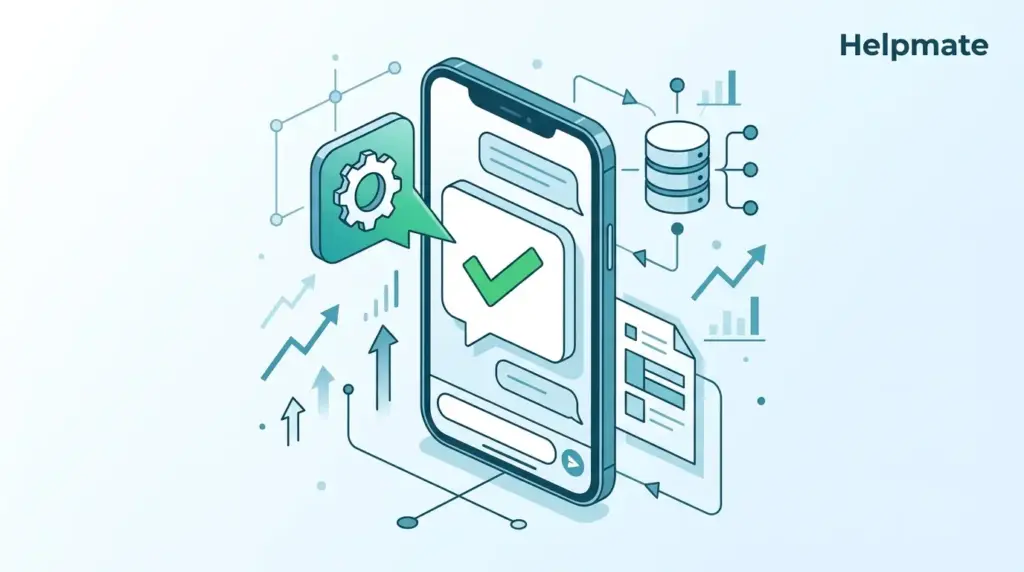
The integration follows a webhook-based architecture. When a message arrives, your BSP sends a webhook payload to your CRM endpoint. The CRM processes the payload, matches the phone number to an existing contact or creates a new one, and routes the message to the appropriate agent or automation flow. It sounds more complicated than it actually is once you see it working.
Key data points to sync between WhatsApp and your CRM include:
- Contact phone number and profile information
- Conversation timestamps and message content
- Tag assignments based on conversation topics
- Lead source attribution (which campaign drove the conversation)
- Order history and purchase value linked to the contact
With Helpmate’s WhatsApp channel integration, you can connect your WhatsApp Business API directly to a unified inbox that also handles Facebook Messenger, Instagram DM, and live chat. The CRM automatically captures leads from WhatsApp conversations, syncs them with WooCommerce or Easy Digital Downloads order data, and makes them available for email campaigns and abandoned cart recovery flows. This eliminates the data silos that occur when WhatsApp operates separately from your other channels.
What Are the Best Practices for WhatsApp API Automation in 2026?
The most successful WhatsApp automation strategies in 2026 follow five principles that balance efficiency with customer experience. Businesses that implement all five see 3x higher conversion rates from WhatsApp-initiated conversations compared to those using ad‑hoc automation (Infobip, 2025).
1. Respect the 24‑hour window. After a customer sends a message, you have 24 hours to respond for free using session messages. After that window, you must use a paid template message to re‑engage. Design your automation to close conversations within the window by collecting key information upfront. Once that window closes, every message costs you.
2. Personalize every template. Use variable placeholders to include the customer’s first name, specific product details, or order numbers. Generic broadcast templates get reported as spam at 5x the rate of personalized ones (Meta Business, 2025). People can spot a blast template from a mile away.
3. Set up conversation routing rules. Route messages by topic, language, or customer tier to the right agent or automation flow. A VIP customer with a billing issue should not wait in the same queue as a general inquiry. This one seems obvious but you would be surprised how many businesses skip it.
4. Monitor quality ratings. Meta assigns each business a quality rating based on user reports and block rates. Drop below a 2.0 rating and your account faces restrictions. Track this weekly and address complaint patterns immediately. Waiting until Meta sends a warning is too late.
5. A/B test your templates. Test different headers, body copy, and button text. Small changes in wording can shift response rates by 15 to 25%. Run each test for at least 500 sends before drawing conclusions. I have seen a single word change move response rates by 20% — worth the effort.
How Do You Measure WhatsApp API Automation Performance?
Tracking the right metrics separates businesses that optimize their WhatsApp automation from those that guess. The five KPIs below give you a complete picture of both efficiency and revenue impact.
Response time. Measure the average time from customer message to first reply. The benchmark for 2026 is under 2 minutes during business hours. Customers who receive a reply within 5 minutes are 10x more likely to convert than those who wait 30 minutes or more (Meta Business, 2025). Speed is the channel’s superpower.
Resolution rate. Track the percentage of conversations resolved without human escalation. A well‑configured automation system should handle 60 to 80% of routine inquiries automatically. Below 50% signals gaps in your knowledge base or automation rules. Or both.
Template delivery rate. Monitor how many templates reach the recipient versus how many fail due to opt‑outs, number changes, or policy violations. A delivery rate below 90% warrants a list cleanup or template revision.
Revenue attribution. Connect WhatsApp conversations to actual purchases using CRM integration. Track which automation flows drive the highest order values and double down on those sequences.
Opt‑out rate. Keep this below 2% per campaign. Anything higher means your messaging frequency or relevance needs adjustment. Include an easy opt‑out option in every template to stay compliant and maintain quality ratings.
What Common Mistakes Should You Avoid with WhatsApp API Automation?
Most WhatsApp automation failures stem from the same five mistakes that are easy to prevent with proper planning. Recognizing these early saves both budget and brand reputation.
Mistake 1: Skipping the verification process. Businesses that rush through Meta verification often face delays of 1 to 2 weeks when issues arise later. Complete full business verification during setup to avoid account limitations during peak campaigns.
Mistake 2: Over‑messaging without segmentation. Sending the same template to your entire contact list ignores customer preferences and purchase history. Segment by behavior, recency, and value to keep messages relevant and maintain quality scores. Your high-value customers and your tire-kickers should not get the same message.
Mistake 3: Ignoring the quality rating dashboard. Many businesses do not check their quality rating until Meta issues a warning. By then, recovering takes weeks of clean sending. Make quality rating review a weekly task in your operations calendar.
Mistake 4: Not building a fallback to human agents. Automation should handle routine tasks and escalate complex ones gracefully. Set clear escalation triggers, such as negative sentiment keywords or repeated automation loops, and route those conversations to live agents immediately. Customers can tell when they are stuck in a bot loop and it frustrates them fast.
Mistake 5: Treating WhatsApp like email. WhatsApp is a conversational channel, not a broadcast platform. Messages that feel one‑directional get blocked. Build two‑way flows that invite customer input and respond dynamically to their replies.
Frequently Asked Questions
WhatsApp Business API pricing is conversation‑based, not per‑message. Rates vary by country and conversation category. In the United States, marketing conversations cost approximately $0.015 per conversation, while utility conversations are $0.002. Meta includes 1,000 free utility conversations per month for each business (Meta Business Help Center, 2026). Costs add up quickly for high‑volume senders, so segmenting your audience to send only relevant templates is critical for controlling spend.
Yes, but only through a BSP that provides a no‑code dashboard. Platforms like Helpmate, WATI, and Twilio offer visual interfaces for setting up templates, auto‑replies, and basic automations without writing code. The Meta Cloud API itself requires developer resources for webhook configuration and message handling. For most WordPress site owners, a BSP with a built‑in plugin integration is the most practical approach.
Most templates are approved within 24 to 48 hours, though some categories like authentication templates may take up to 72 hours during high‑volume periods. Rejected templates can be revised and resubmitted immediately. Common rejection reasons include promotional language in utility templates, missing opt‑out instructions, and placeholder formatting errors (Meta Business Help Center, 2026).
The free WhatsApp Business App supports up to 5 devices and 256 contacts, with manual messaging and basic auto‑replies. The API removes device limits, supports unlimited contacts, enables full automation through webhooks and templates, and integrates directly with CRMs and e‑commerce platforms. Over 175 million businesses use the free app, while approximately 25 million have upgraded to the API tier for scalable automation (Searchlab, 2026).
Your quality rating depends on user feedback, block rates, and message relevance. Keep it high by segmenting audiences, personalizing templates, respecting opt‑out requests within 24 hours, and maintaining a contact list with active numbers. Meta displays your quality rating in the WhatsApp Manager dashboard, and dropping below 2.0 can trigger account restrictions. Review your rating weekly and address any downward trends immediately.
Yes, and it outperforms email for abandoned cart recovery. WhatsApp abandoned cart messages achieve 20 to 30% conversion rates compared to 5 to 10% for email (Chatarmin, 2026). To set this up, connect your e‑commerce platform (WooCommerce, Shopify, or EDD) to your API through a BSP or integration layer like Helpmate. Configure a trigger that fires 1 to 3 hours after cart abandonment, using a template that includes the product image, price, and a direct checkout link.
WhatsApp Business API automation is no longer a luxury reserved for enterprise teams. With the right BSP and a clear automation strategy, businesses of any size can deploy instant auto‑replies, personalized template campaigns, and CRM‑synced workflows that deliver measurable results. Start with the three foundational automation rules, build your template library around the five high‑performing categories, and track your five core KPIs weekly. The combination of WhatsApp’s 98% open rates and proper automation setup creates one of the most effective customer communication channels available today.
If you want to connect WhatsApp directly to your WordPress site alongside other social channels, Helpmate – Live, Social & AI Chat with Built-in CRM provides a unified inbox that handles WhatsApp, Messenger, Instagram, and live chat from a single dashboard with built-in CRM and automation tools.