
We have all been there, the customer asks about a specific warranty clause and the chatbot gives some generic answer about “typical coverage” that has nothing to do with their actual policy. That is the problem with untrained AI. When someone wants to know the exact torque spec for their brake caliper or whether their 2019 sedan qualifies for the extended powertrain warranty, they need answers pulled from your documents, not some general knowledge database.
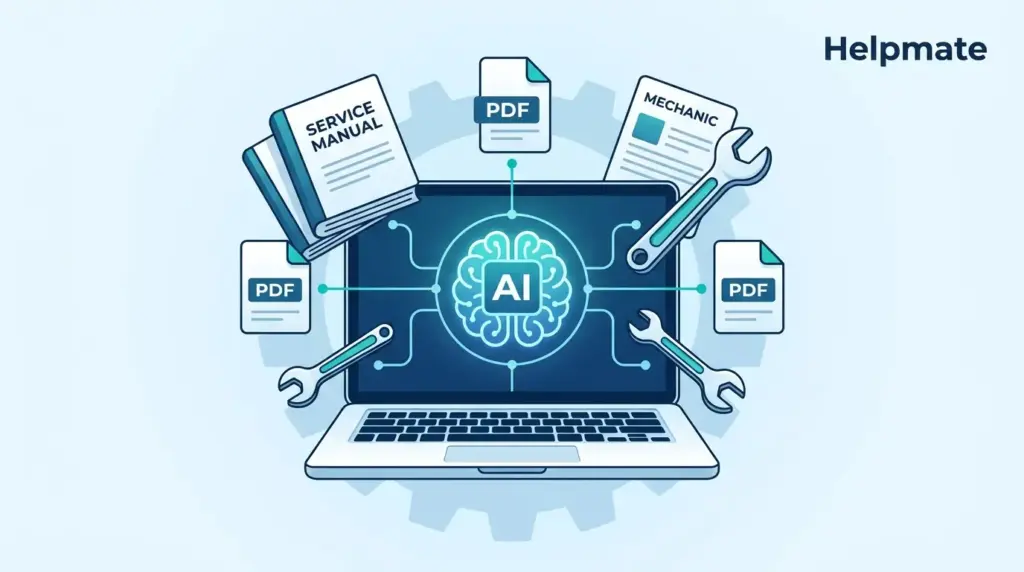
This guide walks through how to train Helpmate AI on your actual service manuals and PDFs. The kind of documentation that sits in your filing cabinet or that shared drive nobody wants to dig through.
TL;DR: Upload your PDFs, CSVs, or text files to the Knowledge Base and you are basically done. Takes maybe 30 minutes if you have your files organized. The 40% ticket reduction figure? That comes from our internal tracking, though obviously your mileage will vary depending on how messy your current support situation is.
Source: Internal Helpmate implementation data, 2025
If you are curious what this looks like in practice, check out how AI customer service automation works with Helpmate.
Why Bother Training on Service Manuals?
Generic chatbots hedge. Ask about warranty coverage and you get “most vehicles include powertrain protection” which helps nobody. Ask about a specific repair procedure and the bot starts talking about “typical steps” that might not match your shop’s protocol at all.
I remember seeing some IBM research from last year, around 67% of automotive service operations said inconsistent information across channels was their biggest headache. Which makes sense. When the website says one thing, the chatbot says another, and the service writer says something entirely different, customers get frustrated fast.
The Helpmate plugin handles this differently. It pulls answers only from your approved documentation. So when a customer asks about oil change intervals, they do not get some generic range. They get the actual manufacturer spec for their specific vehicle.
Here is the difference. Generic bot response to “What is the recommended oil change interval?”
“Most vehicles need oil changes every 3,000 to 7,500 miles depending on conditions.”
Trained Helpmate response:
“For your 2022 Model X with the turbocharged engine, the manufacturer specifies synthetic oil every 7,500 miles or 12 months under normal driving conditions. Severe service requires 5,000-mile intervals.”
That second answer actually solves the customer’s problem.
- Accuracy: Your exact specs, not generic guesses
- Consistency: Same answer whether they call, email, or chat
- Efficiency: Complex questions resolve without escalating to your service writers
- Compliance: Stays within manufacturer and regulatory requirements
- Authority: Customers trust precise answers over hedged responses
What Files Actually Work for Training?
Helpmate accepts most common formats, though some work better than others depending on what you are trying to accomplish.
PDF Documents
Service manuals, technical bulletins, warranty docs. These are the heavy lifters. The system handles both native PDFs with selectable text and scanned documents through OCR. Native files process cleaner and faster, obviously. Scanned docs work but you will want to check the extraction quality.
Text Files and CSVs
Plain text and CSVs parse reliably. CSVs are great for parts catalogs, pricing tables, compatibility matrices. Each row becomes its own knowledge chunk the AI can reference directly.
JSON Files
If you have API documentation or complex nested data like vehicle trim hierarchies, JSON handles the structure well.
Excel Spreadsheets
Excel files work for maintenance schedules, service intervals, inventory lists. The system keeps row and column relationships intact so the AI understands context.
Website Content and URLs
You can also point Helpmate at specific URLs or sync with WordPress content. This keeps product pages and FAQs current without manual re-uploads every time something changes.
Manual Q&A Entries
Sometimes the manual just does not cover the weird edge cases your customers actually ask about. You can add custom question-answer pairs directly. Useful for capturing that institutional knowledge that never made it into formal documentation.
| Source Type | Best For | Processing Time |
|---|---|---|
| PDF (native) | Service manuals, technical docs | 2-5 min per 50 pages |
| PDF (scanned) | Legacy documents | 5-10 min per 50 pages |
| CSV/Excel | Parts catalogs, pricing tables | Under 1 min |
| Text/JSON | Structured knowledge bases | Under 1 min |
| URL crawl | Dynamic website content | Depends on site size |
Uploading Service Manuals: Step by Step
The actual upload process is straightforward, though a few configuration choices matter more than you might expect.
Step 1: Access the Knowledge Base
From your WordPress admin sidebar, find Helpmate and select Knowledge Base. Depending on your menu setup, this might also show as “Train Chatbot.” Same workspace either way.
Step 2: Upload Your Files
Click Upload Files, then drag and drop or browse to select. You can upload multiple files at once. Individual file limit is 50MB.
Step 3: Configure Processing Options
Before you hit confirm, set these options:
- Document title: Use something descriptive like “2024 Sedan Service Manual” instead of “DOC_2847_final.pdf”
- Category tagging: Tag with categories like Warranty, Maintenance, Technical Specs for easier management later
- OCR language: Pick the right language if you are processing scanned docs
- Chunking strategy: Paragraph-level works for most service manuals. Page-level if you have dense spec sheets where context spans full pages
Step 4: Wait for Processing
Files go into a queue after upload. Status indicators show progress. Native PDFs move fast. Scanned documents with OCR take longer. A 500-page manual might need 10-15 minutes. You will get an email when indexing finishes.
Step 5: Check the Extraction
This step gets skipped too often. Preview the extracted text. Make sure torque values, warning notices, and specifications came through correctly. If you see garbled text, the scan quality was probably too low. Higher resolution rescans fix most OCR issues.
Structuring Your Training Data for Better Results
Uploading documents is only part of it. How you structure the content inside those documents affects retrieval quality significantly. Organizations that get this right see around 34% higher satisfaction scores compared to those that just dump raw files in and hope for the best.
Use Clear Headings
Descriptive headings help the AI understand where context starts and stops. “Brake System Maintenance – 2020-2024 Models” gives the system way more to work with than “Section 4B.” The AI uses heading hierarchy to weight information importance.
Specify Model Years and Variants
Automotive knowledge is only useful if it applies to the right vehicle. Be explicit about which years, engines, and trims each procedure covers. Prevents the AI from mixing up similar specs that are actually different.
Add FAQ Supplements
Service manuals explain how to do things. They rarely address whether customers should do things, or what happens if they do not. Add FAQ entries for the questions your service writers actually get: “Should I wait for the warning light before changing brake fluid?” “What happens if I use the wrong oil weight?”
Keep Terminology Consistent
If your dealership calls it “scheduled maintenance,” do not mix in “routine service” and “factory recommended service” randomly. Pick one term and stick with it. Mixed terminology fragments the knowledge graph and the AI starts giving confused answers.
Organize by Intent
Group knowledge into functional buckets: diagnostics, maintenance schedules, warranty terms, parts compatibility, pricing. Helps the AI route queries to the right domain.
Testing Before You Go Live
Training is not done until you have verified the responses actually make sense. Helpmate includes a test sandbox for this.
Using the Test Chatbot
Find Test Chatbot in the Helpmate admin menu. This mirrors the customer widget but shows you internal metadata. You can see exactly which documents the AI pulled from for each answer.
Test These Query Types
Structure your testing around real questions customers actually ask:
- Direct lookups: “What is the torque spec for lug nuts on a 2023 Model Y?”
- Comparisons: “What is the difference between standard and extended warranty?”
- Procedures: “How do I reset the maintenance reminder?”
- Edge cases: “Does warranty cover aftermarket modifications?”
- Multi-part: “What oil should I use and how often?”
What to Check
For each test query, verify:
- Accuracy: Does it match your documentation exactly?
- Completeness: Did it include model year applicability and other relevant context?
- Source traceability: Can you see which document the answer came from?
- Appropriate confidence: Does it indicate uncertainty when the docs are ambiguous?
Iterate Quickly
When responses miss the mark, go back to Knowledge Base. Add missing documents, fix FAQ entries, restructure confusing uploads. Test Chatbot updates immediately when knowledge sources change, so you can iterate fast.
Mistakes That Will Cause Problems
These come up repeatedly, even with experienced admins. Worth watching for.
Outdated Documentation
Service procedures change. Technical bulletins revise torque specs. Maintenance intervals get updated. That 2020 manual might have superseded information. Set a quarterly reminder to audit and replace old docs.
Licensing Issues
Some manufacturer service information carries restrictions. Check that your subscription allows AI training use before uploading. Some subscriptions specifically prohibit extraction into third-party systems. Better to ask your IT or legal team than find out later.
Missing Edge Cases
Standard procedures train easily. Weird situations do not. Discontinued models, aftermarket compatibility, unusual diagnostic codes. Create explicit Q&A entries for these rather than hoping the AI figures it out.
OCR Errors
Scanned documents with skewed pages, handwritten notes, watermarks. These produce garbage text extraction. A misread torque spec, 95 ft-lb versus 59 ft-lb, creates real liability. Check extracted text carefully.
No Human Review
Automated extraction speeds things up but cannot replace expert eyes. Have your service manager verify that critical safety information and warranty terms extracted correctly before enabling customer-facing responses.
Keeping Knowledge Current
Static knowledge bases rot. Products change, policies evolve, new models release. Without maintenance, accuracy degrades over time.
Schedule Regular Reviews
Calendarize quarterly audits. Review each document category, remove obsolete materials, add new model coverage, update pricing. Helpmate shows upload and modification dates to help identify aging content.
Sync Dynamic Content
If you are using URL-based training, enable automatic re-crawling. Keeps product pages and published FAQs synchronized. Just make sure your crawl schedule matches how often you actually publish updates.
Monitor Conversation Analytics
Check the Inbox and Analytics sections. Look for questions that triggered fallback responses or got poor answers. Those indicate knowledge gaps. Add targeted documents or FAQ entries to cover those topics.
Version Control
When manufacturers release revised service manuals, replace the old version entirely. Do not keep both. Duplicate or conflicting documentation creates ambiguous retrieval. Helpmate lets you delete and replace without affecting other knowledge base entries.
Assign Ownership
Designate specific people for knowledge base maintenance. Without clear ownership, documentation gets orphaned. Make sure backup admins know the upload, testing, and validation workflows.
Frequently Asked Questions
Yes. Helpmate includes OCR capabilities that extract text from scanned documents and images. For best results, ensure scans are at least 300 DPI with straight alignment. Native digital PDFs process faster and with higher accuracy, but scanned materials work effectively for legacy documentation.
Processing time varies by document type and size. Native PDFs and text files typically process within 2-5 minutes per 50 pages. Scanned documents requiring OCR take 5-10 minutes for equivalent page counts. Large Excel databases with thousands of rows may process in under a minute. You will receive notification when indexing completes.
Helpmate accepts PDF, TXT, CSV, JSON, and Excel (.xlsx) files. The Knowledge Base also ingests content from WordPress posts, pages, and custom URLs. Maximum individual file size is 50MB. For larger documentation sets, split into logical sections by system or model year.
Yes. Helpmate builds a unified knowledge graph from all uploaded sources. You can simultaneously train on PDF service manuals, CSV parts catalogs, WordPress product pages, and manually entered FAQ entries. The AI retrieves across all sources to construct comprehensive responses with proper context.
First, identify the source document causing confusion using the Test Chatbot’s citation display. Check for OCR errors in scanned materials or ambiguous wording in the original text. Either replace the problematic document with a corrected version, or add a specific Q&A entry that clarifies the correct answer. Retest the query to confirm resolution.
Document limits depend on your Helpmate plan tier. The free version includes sufficient capacity for small knowledge bases covering basic FAQs and product information. Growing dealerships typically upgrade to accommodate full service manual libraries spanning multiple model years. Review current plan details on the pricing page for specific limits.
No coding is required. The Knowledge Base interface uses familiar WordPress-style uploads and form fields. If you can upload images to WordPress media library, you can train Helpmate AI. Service managers and customer experience coordinators successfully administer knowledge bases without IT department involvement.
Key Takeaways
- Training Helpmate AI on service manuals transforms generic chatbots into expert service advisors
- Supported formats include PDF, CSV, Excel, JSON, text files, and website URLs
- Proper document structure with clear headings and consistent terminology improves retrieval accuracy
- Always verify extraction quality, especially for scanned documents with OCR processing
- Regular updates and maintenance prevent knowledge base decay and ensure compliance
- No technical expertise required. The Knowledge Base interface operates within standard WordPress workflows
Accurate AI responses build customer trust and reduce support burden. By training Helpmate on your specific service manuals and technical documentation, you create a competitive advantage that generic chatbots cannot match. Start with your most frequently referenced documents, test thoroughly, and expand coverage systematically.
Get Started Today: Build your AI Knowledge Base and turn your service manuals into instant, accurate customer answers.