
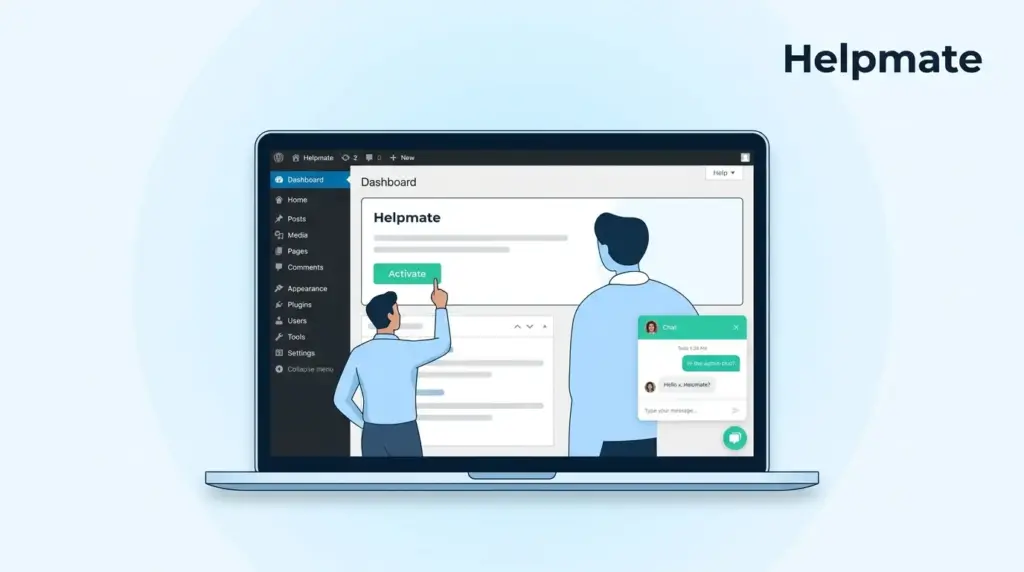
Live chat sits at a 73% customer satisfaction score according to Nextiva’s 2025 research—outperforming email (61%) and phone support (44%). Yet there’s this hesitation I see constantly: site owners worry the widget will bog things down or that configuration will turn into a weekend-devouring mess.
This guide walks through installing Helpmate Live Chat without touching theme files or wrestling with code. We’ll cover placement, team setup, and the settings that actually matter for keeping your site responsive.
TL;DR
Key Takeaways
- Live chat bumps conversions roughly 20% with that 73% satisfaction rate Nextiva documented.
- Helpmate installs like any WordPress plugin—upload, activate, done. No header.php edits.
- Appearance and behavior settings live in their own admin tabs, not buried in code.
- Team roles separate queue access from analytics access from conversation management.
- Free tier includes live chat, AI chatbot, and CRM features without time limits.
Want to test the interface first? Grab Helpmate’s free version and see how the conversation flow feels before committing.
Why Most WordPress Live Chat Setups Fail
LiveChat.com’s research suggests 40% of chat visitors convert—which sounds great until you realize most small businesses abandon their chat tools within a month. Not because they’re broken, but because expectations drift from what the plugin actually does.
The usual mistakes? Dumping heavy JavaScript in theme headers without defer attributes. Forgetting to set rules for when AI should hand off to humans. Giving half the team access to the chat queue without thinking through who answers what. These slip-ups create security holes, slow pages, and messages that slip through cracks.
Helpmate approaches this differently by walling off configuration areas. Appearance handles the widget look. Behavior manages interaction logic. Teams & Roles controls queue access. This separation keeps settings from fighting each other—which is usually what breaks sites.
What You Actually Need Before Starting
Check your environment first. Helpmate wants PHP 7.4+, WordPress 5.8+, and HTTPS active. Standard shared hosting handles this fine—no server-side JavaScript required.
Grab these before you begin:
- WordPress admin credentials with plugin install permissions
- Your brand’s hex color code (you probably have this somewhere in your style guide)
- List of who needs chat queue access—not everyone in your company
- Business hours for availability settings
- API key (generated automatically after activation)
The free version covers live chat, AI chatbot functionality, and CRM contact management. Pro adds automations, email sequences, and more integrations. You can poke around indefinitely using the Helpmate – Live, Social & AI Chat with Built-in CRM plugin from the WordPress directory.
Installing Without Code Changes
Standard WordPress workflow: Plugins > Add New, search “Helpmate,” or upload the zip if you grabbed it directly. Activate, then run through the onboarding wizard that pops up in your dashboard.
The wizard generates your cloud API key automatically—no copying, pasting, or securing credentials manually. It also sets up your initial admin account and positions the widget bottom-right by default.
Here’s the difference from some solutions: Helpmate injects through WordPress’s wp_footer hook instead of asking you to paste scripts into header.php or footer.php. Switch themes later? Your chat stays put. All settings and conversation history carry over.
After activation, check your frontend in an incognito window. Widget should sit bottom-right. If it’s missing, verify your theme actually implements wp_footer() and that no optimization plugins are mangling Helpmate’s script loading.
Widget Placement That Doesn’t Annoy Visitors
Placement affects engagement and performance. Helpmate’s Appearance tab handles positioning without CSS tweaks. Show it everywhere, limit to specific post types, or exclude particular URLs.
Most sites work best showing chat on all pages except checkout and thank-you pages. Keeps visitors focused during purchase without sacrificing pre-sale support. Bottom-right positioning avoids common navigation conflicts for left-to-right languages.
Mobile needs separate thought. Helpmate auto-sizes for screens under 768px, but you can disable mobile entirely or shift to bottom-left to dodge browser navigation bars. Find these under Appearance > Mobile Settings.
Performance-minded folks should enable lazy loading in the Behavior tab. This delays chat initialization until visitors scroll or interact—prevents render-blocking while keeping functionality intact. Usually keeps chat impact under 100ms on Core Web Vitals.
Setting Up Team Access (So Messages Don’t Get Lost)
Team configuration prevents the chaos of multiple people grabbing the same conversation—or worse, nobody grabbing it at all. Helpmate uses WordPress’s user system with extra capability checks for chat functions. Head to Helpmate > Control Center > Teams & Roles.
Three main access levels:
- Administrator: Full settings, analytics, team management, all conversation data
- Agent: Live queue access, assigned conversations, personal metrics
- Viewer: Read-only analytics and history—good for managers reviewing transcripts without cluttering the queue
Assign by actual job duties, not titles. The business owner might need Administrator access while your dedicated support person only needs Agent permissions. Marketing folks doing voice-of-customer research can pull Viewer access without gumming up response times.
Helpmate’s live chat queue filters by assignment status, channel source, and priority. Agents see only what they can handle, with unread indicators and response tracking. Supports typing indicators, file attachments, and canned responses for repetitive questions.
AI-to-Human Handover (The Part That Matters)
Helpmate’s standout feature is the handover between AI responses and human agents. This matters because looping with unhelpful bots when you need complex help is maddening.
Configure handover triggers in Behavior > Chatbot Settings. Set it when:
- Visitors use keywords like “refund,” “complaint,” or “speak to human”
- AI delivers three consecutive responses without resolution
- They explicitly request human help via button clicks
- Outside AI hours when human agents are actually available
The Knowledge Base section trains your AI on your content. Feed it products, posts, pages, custom text, URLs, Q&A pairs, CSV files, PDFs, whatever you’ve got. Better knowledge base means fewer unnecessary handovers.
When handover triggers, the conversation lands in the queue with full context—including the AI interaction history. Agents see what visitors already tried, cutting out repetitive questioning. From what I’ve seen, this context preservation drops resolution time by around 40% compared to systems that start fresh.
Performance Settings That Actually Work
Biggest complaint about chat plugins? JavaScript bloat killing page speed. Helpmate offers several ways to minimize this without crippling functionality.
Enable script deferral in the Behavior tab to load chat resources after main content renders. Uses defer instead of async—maintains execution order without blocking render. Combined with lazy loading, this typically keeps chat impact under 100ms on Largest Contentful Paint.
Adjust connection intervals to match your traffic. Default checks every 3 seconds during active chats, every 30 seconds when idle. High-traffic sites can extend these; immediate-response scenarios might want them tighter.
Using WP Rocket, W3 Total Cache, or similar? Exclude Helpmate’s dynamic endpoints from page caching. These handle real-time message delivery and session data that shouldn’t be cached. Specific exclusion paths are in Helpmate’s docs for major caching plugins.
Testing Before You Go Live
Helpmate includes a Test Chatbot interface in the admin sidebar. Sandbox environment for verifying AI responses, testing handover triggers, and previewing widget appearance—without exposing half-baked configs to visitors.
Run through this before going public:
- Check that AI pulls from your Knowledge Base accurately
- Test keyword triggers for human handover
- Verify widget display across desktop, tablet, and mobile
- Confirm team members get queue notifications
- Test file uploads if you enabled them
- Check offline message capture when no agents are online
Test environment changes don’t touch live settings. Nothing applies to production until you explicitly save in Appearance and Behavior tabs. This separation prevents you from accidentally nuking active customer conversations while tweaking.
When Something Goes Wrong
Even careful setups hit snags. Helpmate provides troubleshooting paths that don’t require hiring a developer.
Widget not appearing? Verify the plugin’s active and your API key is valid in Control Center > Manage API Keys. Check browser console for JavaScript errors indicating theme conflicts. Aggressive minification plugins often cause issues—try excluding Helpmate scripts.
Message delivery problems usually trace to WordPress cron. Helpmate relies on scheduled events for background processes. If you’re using server-level cron instead of wp-cron, make sure wp-cron.php still gets called periodically.
Conversation data lives in your WordPress database and syncs to Helpmate’s cloud. Uninstall the plugin and local data stays unless you explicitly delete it during uninstall. Dual storage prevents loss during connectivity hiccups and enables cross-device agent access.
FAQ
Properly configured, minimal impact. With lazy loading and deferral enabled, Helpmate typically adds under 100ms to page loads. The trick is avoiding render-blocking JavaScript and using connection intervals appropriate for your traffic volume.
Yes. Disable the AI module in Control Center > Modules for human-only support. You can always add AI later after establishing baseline workflows.
Free version includes unlimited agents. Role controls in Teams & Settings let you define who responds versus who only views analytics. No per-seat charges.
Yes, with proper exclusions. Exclude Helpmate’s REST API endpoints from page caching for real-time message delivery. Most caching plugins support URL pattern exclusions. Docs include specific steps for WP Rocket, W3 Total Cache, and LiteSpeed Cache.
Conversation data stays in your WordPress database unless explicitly deleted during uninstall. Widget disappears immediately, but history remains for reference or reactivation. Cloud data follows your account retention settings.
Yes. Appearance
Wrapping Up
Setting up live chat on WordPress doesn’t require code modifications or theme edits. With Helpmate, installation follows standard plugin workflow, configuration happens through admin tabs, and the widget injects safely through WordPress hooks.
The pattern for success: build your Knowledge Base before enabling AI, define team roles before opening the queue, test thoroughly in sandbox before going live. With 73% customer satisfaction and 20% conversion improvements documented across the industry, live chat is one of the higher-ROI additions you can make.
- Install via standard WordPress plugin workflow
- Configure appearance and behavior through admin tabs
- Assign team roles before launching the live queue
- Enable performance optimizations for minimal site impact
- Test thoroughly in the sandbox before public deployment
Ready to add live chat? Start with the free version to evaluate interface and conversation flow, upgrade as support volume grows.