
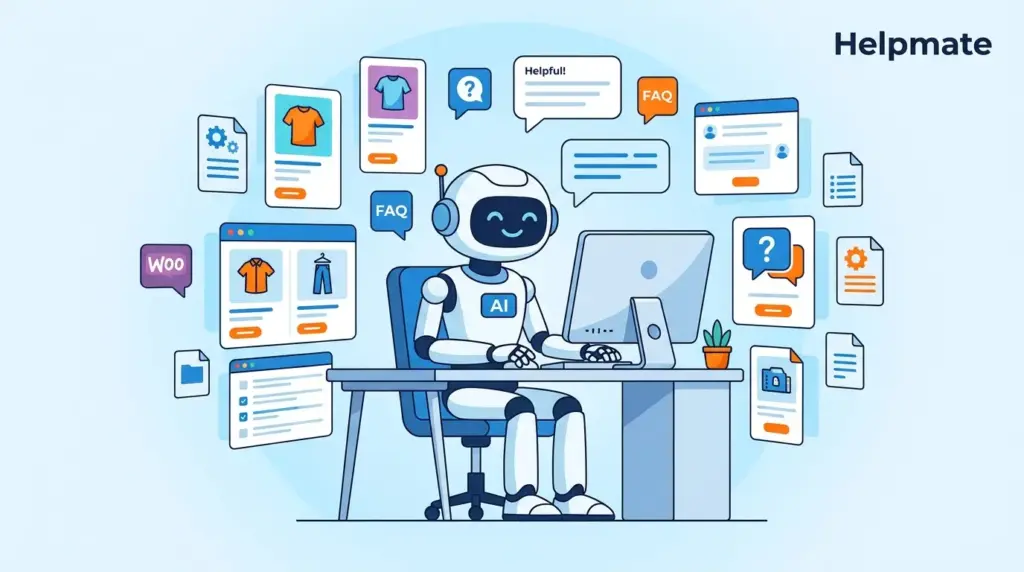
TL;DR: Training an AI chatbot for your WooCommerce store can boost productivity—one recent study suggested around 15% (AmraandElma, 2026). With Helpmate, you’re pulling from products, posts, custom text, URLs, Q&A pairs, and whatever files you’ve got sitting around. Most stores we see get accurate responses within minutes of finishing the Knowledge Base setup. If you want the fastest path to something useful, start with your product catalog and FAQs.
Why Bother Training an AI Chatbot for WooCommerce?
The 15% productivity figure keeps showing up in studies—particularly for newer customer service agents who are still learning the ropes (AmraandElma, Apr 2026). For WooCommerce stores specifically, this usually means handling the repetitive stuff instantly while your human team deals with the weird edge cases. About 54% of users find chatbot customer service somewhat effective, and another 33% call it highly effective (Master of Code, 2026). Either way, trained chatbots tend to cut response times and push customer satisfaction scores in the right direction.
The thing is, generic chatbots fail because they don’t know your store. They don’t know that you stopped carrying the blue version of that backpack in March, or that your return policy changes during holiday season. A trained AI chatbot actually pulls from your real product descriptions, return policies, and whatever shipping rules you’ve got buried in your terms page. So when someone asks about stock levels or sizing guides, the answer is accurate without someone on your team having to step in.
Helpmate handles this through its Knowledge Base system. You feed it products, posts, pages, random files from your desktop—whatever—and the bot figures out how to reply using that context. The result sounds like your brand because it’s literally using your words. Companies using AI chat solutions apparently handle around 80% of routine inquiries automatically these days (EverHelp, 2026).
Ready to automate your support? Get started with Helpmate and train your AI chatbot today.
What Data Can You Actually Use?
Helpmate takes six types of data: products, posts/pages, custom text, URLs, Q&A pairs, and uploaded files (CSV, TXT, JSON, PDF, Excel). This flexibility is useful because every store has content scattered in different places. The Knowledge Base ingests everything and creates a retrieval system that pulls relevant bits when customers ask questions.
Product Catalog Integration
Connect your WooCommerce products directly and the system grabs titles, descriptions, prices, variants—the whole thing. This lets the chatbot handle specific questions like “Do you have this in medium?” or “What is the shipping weight?” Product training matters for ecommerce chatbots because purchase decisions live or die on those details.
Content Pages and Posts
Your existing WordPress content becomes training material automatically. About pages, policy documents, blog posts—everything feeds into the knowledge base. When customers ask about your return policy or company history, the chatbot references what you’ve already written. It’s basically repurposing work you’ve already done.
Custom Q&A Pairs
Manually curated questions and answers give you control over specific scenarios. Add something like “Do you ship internationally?” with the exact answer you want used. This fills gaps where automated ingestion might miss nuance. Q&A pairs also train the bot on your brand voice—how casual or formal you want it to sound.
File Uploads
Upload PDFs, spreadsheets, text files—whatever documentation you’ve got. This works for technical specifications, user manuals, or that wholesale pricing sheet from your supplier. The system extracts text and makes it searchable. File uploads help when content lives outside your WordPress database, which happens more often than you’d think.
Setting Up the Knowledge Base in Helpmate
The Knowledge Base is where the actual training happens. You’ll find it in the admin menu labeled either “Knowledge Base” or “Train Chatbot”—both take you to the same workspace where you configure what the AI learns from.
Step 1: Enable Data Sources
Navigate to Knowledge Base and pick your data sources. Toggle on WooCommerce Products to pull your catalog. Enable Posts and Pages to include your content. Turn on Files if you want to upload documents. Each source shows up as its own tab in the training interface.
Step 2: Sync Products and Content
For WooCommerce, Helpmate syncs your product catalog automatically. The system indexes product titles, descriptions, prices, SKUs, attributes—basically everything. This happens through the integration settings. Make sure your Helpmate API key is active in Settings, then run a sync to populate the knowledge base with current data.
Step 3: Add Custom Text and URLs
Use the Custom Text tab for content not in your WordPress database. Paste FAQs, policy updates, seasonal announcements—whatever. The URLs tab lets you add external pages, like your shipping carrier’s tracking instructions or manufacturer specs. The system crawls these and adds them to the training corpus.
Step 4: Upload Files
Switch to the Files tab and upload your documents. Supported formats include CSV, TXT, JSON, PDF, and Excel. The system extracts text and makes it available to the AI. This works well for complex documentation like technical specifications, sizing charts in spreadsheets, or warranty PDFs.
Step 5: Configure Q&A Pairs
The Q&A tab lets you add specific questions and answers. This trains the bot on exact phrasing you want used. Add common questions like “What are your hours?” or “Do you offer gift wrapping?” with precise answers. Q&A pairs override general content when matched, giving you control over specific responses.
Want to verify your setup? Test your chatbot in the sandbox before going live.
How Long Does Training Actually Take?
Initial training usually completes within minutes for most WooCommerce stores. Small catalogs—maybe under 100 products—sync in under 5 minutes. Larger stores with thousands of products might take 15 to 30 minutes depending on server response time and how much content we’re talking about. The system processes text extraction in batches, showing progress indicators in the admin panel so you’re not staring at a blank screen.
Training isn’t one-and-done. When you add new products or update content, you need to re-sync to keep the chatbot current. Helpmate shows last-sync timestamps so you know how fresh your data is. For stores with frequent inventory changes, schedule weekly re-syncs or at least update after major catalog changes.
The AI processes your content into embeddings immediately after sync. These embeddings power the retrieval system that finds relevant answers. No manual training sessions needed—the bot learns from your content structure automatically. Fresh content performs better in AI systems, with around 50% of Perplexity citations coming from current-year content (Ahrefs, Dec 2025).
Testing Your Trained Chatbot
Helpmate includes a Test Chatbot feature in the admin panel. This sandbox environment lets you message the bot and preview responses before the widget goes live. Open the Test Chatbot tab, type questions, and verify answers pull from your knowledge base correctly.
Testing Product Questions
Ask specific product questions to verify catalog training. Try “What colors does the Premium Hoodie come in?” or “Is the Wireless Headset waterproof?” Check that answers reference correct product details. If responses are generic or wrong, check that products are synced and descriptions actually contain the relevant attributes—sometimes the data’s there but not where the AI expects it.
Testing Policy Questions
Test policy queries like “What is your return policy?” or “How long does shipping take?” These should return answers from your policy pages or Q&A pairs. If the bot fails here, verify your pages are included in the Knowledge Base and that Q&A pairs cover these topics explicitly.
Testing Edge Cases
Ask questions outside your knowledge base scope. The bot should admit when it doesn’t know rather than making things up. This builds trust. If the bot hallucinates information, adjust the chatbot tone in Settings to be more conservative, or add a fallback response directing users to human support.
Best Practices That Actually Work
Ahrefs research suggests AI systems cite content with statistics about 40% more often (Ahrefs, 2025). Apply this by ensuring your product descriptions and Q&A pairs include specific details. Instead of “fast shipping,” say “ships within 2 business days.” Specificity trains better AI responses.
Start with High-Volume Questions
Review your support tickets and identify the 20 most common questions. Train these first via Q&A pairs. Covering frequently asked questions provides immediate ROI. Around 87% of consumers report positive experiences with chatbots when answers are accurate (Master of Code, 2026).
Keep Content Updated
About 76.4% of ChatGPT’s most-cited pages were updated within 30 days (Ahrefs, 2025). Re-sync your knowledge base quarterly at minimum. Update immediately when policies change, prices shift, or inventory turns over. Stale training data creates customer frustration when the chatbot gives outdated answers—like quoting last year’s shipping rates.
Use Structured Data Where Possible
Products with complete attributes train better. Fill all WooCommerce product fields: weight, dimensions, attributes, categories. The AI uses this structured data to answer comparison questions. “Which laptop has more RAM?” requires structured attribute data to answer correctly.
Monitor and Iterate
Review chatbot conversations in the Helpmate Inbox weekly. Identify where the bot failed to understand or gave wrong answers. Add Q&A pairs for these gaps. This continuous improvement cycle increases resolution rates over time. Top-performing chatbot implementations apparently review transcripts monthly (EverHelp, 2026).
FAQ: Training Your WooCommerce AI Chatbot
Helpmate accepts CSV, TXT, JSON, PDF, and Excel files for training. The system extracts text content from these documents and adds them to your knowledge base. PDFs containing images without OCR text won’t extract properly—make sure documents are text-based or have searchable text layers before uploading. Maximum file sizes depend on your hosting configuration, but files under 10MB upload reliably.
Re-sync your knowledge base after any significant content change. For active stores, schedule weekly re-syncs of products. Around 76.4% of AI-cited pages are updated within 30 days (Ahrefs, 2025). Monthly re-syncs are the minimum for accurate responses. Re-train immediately when pricing, policies, or inventory changes. The system shows last-sync timestamps so you can track freshness.
Yes. Helpmate training requires no coding knowledge. The interface uses toggles, upload buttons, and text fields. WooCommerce integration syncs automatically once connected. Adding Q&A pairs is as simple as filling out a form. The training interface is designed for store owners, not developers.
Configure fallback behavior in the Behavior settings. Options include admitting lack of knowledge, offering to create a ticket, or escalating to live chat handoff. Use Q&A pairs to fill gaps identified during testing. The Test Chatbot sandbox shows how fallbacks trigger before going live. About 54% of users find chatbot customer service effective when systems handle handoffs gracefully (Master of Code, 2026).
Knowledge Base training includes product catalog data, not individual customer orders. Order status lookups use a separate tool requiring customer verification via email or phone. The knowledge base contains product descriptions, prices, and policies. Customer-specific order queries route through the Order Status Tracking module with verification, not the general knowledge base training.
Yes, the free version of Helpmate – Live, Social & AI Chat with Built-in CRM includes AI chatbot training features. Free users can train using products, posts, pages, custom text, URLs, and Q&A pairs. Some advanced features like file uploads may require upgrading to Pro. The core knowledge base functionality works on the free tier.
Use the Test Chatbot sandbox to verify responses before launch. Check that product questions return specific details, not generic answers. Review conversation transcripts in the Inbox to see real customer interactions. Monitor resolution rates. Effective chatbot training shows around 80% of routine inquiries resolved automatically without human escalation (EverHelp, 2026).
Start Training Your WooCommerce AI Chatbot
Training an AI chatbot for your WooCommerce store takes five steps: connect your data sources, sync products, add custom content, upload files, and configure Q&A pairs. Testing validates accuracy before launch. Following best practices—keeping content current, starting with high-volume questions—helps maximize ROI.
The result is a chatbot that knows your products, speaks in your brand voice, and resolves customer inquiries automatically. This reduces support workload while improving response times. With AI boosting support productivity by around 15% and consumers increasingly expecting instant answers, trained chatbots are becoming essential for competitive WooCommerce stores.
- Sync your product catalog first for immediate product knowledge
- Add Q&A pairs for your top 20 support questions
- Test thoroughly in the sandbox before going live
- Re-train monthly or after any major content changes
- Monitor conversations to identify knowledge gaps
Ready to train your AI chatbot? Install Helpmate – Live, Social & AI Chat with Built-in CRM and start building your knowledge base today.