TL;DR: Clinics lose something like 30% of potential revenue to no-shows and the endless back-and-forth of phone tag. Helpmate’s automated booking lets patients schedule at 11 PM or whenever they actually have a moment, syncing straight into your CRM without anyone lifting a finger. Setup means turning on the Appointments module, mapping a few form fields, and setting when you’re actually available. Practices usually see no-shows drop by 30-40% once those reminders start firing automatically.
Most front desk staff at medical practices spend the majority of their day—around 60% if you tracked it—just handling appointment calls, reschedules, confirmations. It’s manual work that piles up, frustrates patients who can’t get through, and burns out good people who signed up to help patients, not chase them down by phone. When someone tries to reach your office during lunch or after 5 PM and gets voicemail, they often just… move on. Find someone else.
Helpmate handles this through native appointment scheduling that plugs into your WordPress site, chat widget, WhatsApp, whatever patients actually use. Patients book without calling anyone. Your CRM captures every interaction so the next conversation picks up where the last one left off. This guide walks through the actual configuration—what to click, what to set, where the gotchas hide.
Why Do Clinics Need Automated Appointment Booking?
About two-thirds of patients—67% according to Healthgrades data from last year—prefer booking online rather than calling. Meanwhile, somewhere around 40% of healthcare providers still rely entirely on phone-based scheduling. That gap creates friction right at the first touchpoint, before the patient has even walked in.
Phone-dependent scheduling creates three problems that compound over time. First, you’re limited to business hours, which is exactly when working patients can’t call. Second, hold times stack up and satisfaction scores drop. Third, manual entry means double-bookings, calendar conflicts, wasted provider slots. We’ve all seen it happen.
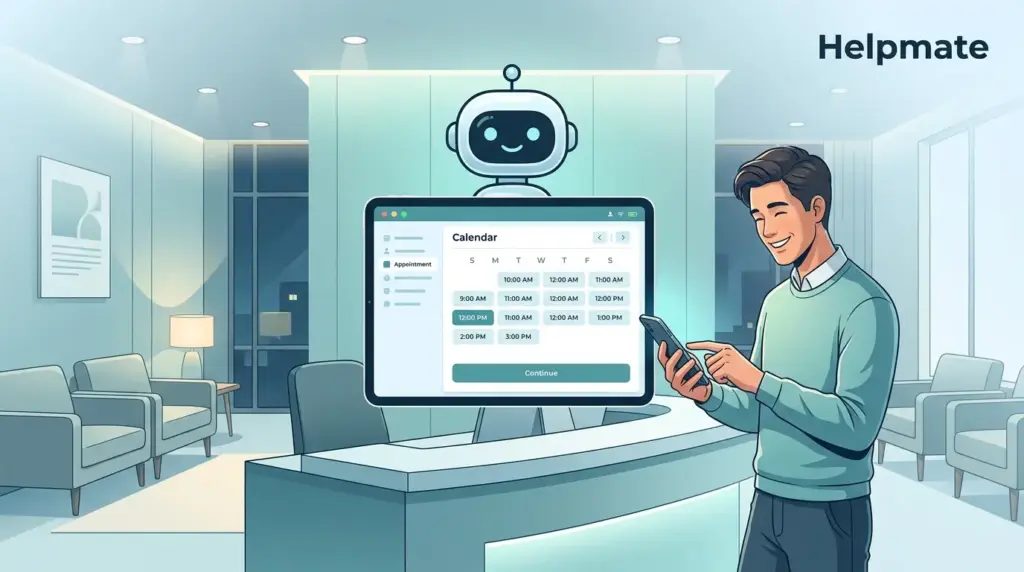
Automated booking flips the model. Patients self-serve through chat interfaces at night, during lunch, whenever. The system checks availability in real-time, prevents overbooking. Confirmation emails and SMS reminders trigger without staff intervention. KLAS Research put the no-show reduction at 30-40% for practices running automated reminders.
Beyond the convenience piece, automation captures structured data upfront—insurance info, visit reasons, contact details—flowing straight into your CRM before the patient arrives. This eliminates clipboard paperwork and lets clinical staff focus on care instead of chasing down whether someone remembered their insurance card.
The Cost of Manual Scheduling
Average medical practices field 50-100 scheduling calls daily. At roughly 4 minutes per call, that’s 3.3 to 6.7 hours of staff time every single day just moving appointments around. Automated booking reclaims those hours for patient-facing work. Plus it captures after-hours appointments that phone-based systems simply miss—patients who would have gone elsewhere.
What Are the Key Features of Helpmate Appointment Booking?
Helpmate’s AI chatbot scheduling infrastructure includes seven core components built for healthcare workflows. These connect conversational interfaces to operational calendars without requiring a developer.
Smart Availability Engine: Reads provider calendars in real-time, showing patients only open slots. You configure buffer times between appointments, daily booking limits per provider, blackout dates for holidays or PTO. The system respects the rules you set.
Multi-Channel Booking: Patients schedule through your website chat widget, Facebook Messenger, Instagram DM, WhatsApp—wherever they already are. All channels feed into one appointment database, unified in the Helpmate inbox. Learn more about social chat management for healthcare.
Form Integration Mapping: Using Contact Form 7, WPForms, Formidable, or Ninja Forms, trigger appointment_creation actions when patients submit intake forms. Field mapping automatically populates CRM contact records with appointment metadata. No rekeying.
Automated Reminders: Email and SMS confirmations send immediately upon booking. Follow-up reminders dispatch 24 hours and 1 hour before appointments based on your sequences.
CRM Tie-In: Every booking creates or updates a contact record with appointment history, no-show flags, custom fields for insurance or visit type. Builds a longitudinal patient view across visits.
Team Handoff: When patients request complex scheduling—surgery consults, multi-provider visits—the chatbot elevates to live chat with your scheduling team, preserving context so patients don’t repeat themselves.
Calendar Sync: Two-way synchronization with Google Calendar or Outlook keeps provider availability current without double-entry.
How Do You Configure the Scheduling Module in Helpmate?
Setting up automated appointment booking breaks into three stages: module activation, availability configuration, integration testing. Total time ranges from 30 minutes for basic schedules up to 2 hours for multi-provider practices with complex rules.
Step 1: Enable the Appointments Module
Navigate to Helpmate Control Center → CRM → Appointments & Bookings. Toggle the module active. This exposes scheduling functions across the platform—chatbot tools, automation triggers, the whole stack.
Step 2: Define Service Types
Create appointment categories—New Patient Visit, Follow-Up, Telehealth Consult—with custom durations, buffer times, assigned providers. Each service type can have its own availability rules. Telehealth slots might run evenings while in-person visits stop at 5 PM, for example.
Step 3: Set Provider Calendars
Under CRM → Appointments, configure working hours for each provider. Set recurring weekly schedules and add specific date overrides for vacations or extended hours. Connect external calendar feeds if using Google Calendar or Outlook sync.
Step 4: Configure Booking Rules
Set minimum notice requirements—say, 4 hours advance booking. Maximum future booking windows, maybe 90 days out. Cancellation policies. Define what information patients must provide—phone, email, insurance—before confirming.
Step 5: Connect Notification Templates
Under CRM → Emails, create confirmation and reminder templates using merge tags for appointment time, provider name, location. Assign these to automated sequences triggered by booking status changes.
How Can You Connect Appointment Booking to Your Website Chat?
Once the backend scheduling module is configured, you need to expose booking capability through patient-facing channels. The Helpmate chat widget becomes the primary entry point for website visitors.
Enable the Appointment Tool: In Helpmate Settings → Chatbot configuration, toggle the appointment_creation tool active. This permits the AI to offer scheduling when patients express intent—”I want to book” or “When is Dr. Smith available?”
Train Intent Recognition: Your knowledge base should include common booking phrases. Add training examples—”schedule a checkup,” “book followup appointment,” “need to see a doctor next week”—mapped to trigger the scheduling workflow.
Customize the Booking Flow: Under Appearance settings, design the widget’s scheduling interface. Choose whether to display a calendar picker or date options first. Configure the confirmation screen to show address, parking instructions, pre-visit forms—whatever reduces day-of confusion.
Test the Conversation Path: Use the built-in Test Chatbot feature. Try variations of scheduling requests to ensure the AI properly collects date preferences, validates against availability, confirms bookings with correct details. Catches the edge cases before patients do.
For practices using social channels, the same appointment tool works across Messenger, Instagram, WhatsApp when connected under Channels settings. Patients can book without visiting your website—true omnichannel patient engagement.
What Automation Rules Should You Set for Clinic Appointments?
Booking the appointment is only half the workflow. Automation rules handle confirmations, reminders, preparation instructions, no-show follow-up—without staff chasing anyone down.
Immediate Confirmation: Trigger email and SMS within 60 seconds of booking. Include appointment details, provider name, location with map link, calendar file attachment. This immediate response reduces anxiety and confirms the booking actually went through.
Pre-Visit Preparation: Dispatch preparation instructions 48 hours before appointments. New patients receive intake form links and insurance card photo requirements. Procedure patients get pre-op instructions—fasting, medication holds. Lab appointments trigger requisition reminders.
24-Hour Reminder: Send SMS and email reminders one day prior. Include rescheduling options—Reply CANCEL to cancel, Reply RESCHEDULE for options. This single automation reduces no-shows by roughly 25% according to American Medical Association data from 2023.
Same-Day Alert: Push notifications 2 hours before appointments confirm the patient is planning to attend. If they reply they cannot make it, the slot immediately returns to availability for waitlist patients.
No-Show Protocol: For missed appointments, trigger a follow-up workflow offering rebooking links and flagging the contact record. After three no-shows, escalate to staff for direct outreach about attendance policies.
Post-Visit Sequences: Send satisfaction surveys 2 hours after appointments while the experience is fresh. Schedule follow-up booking prompts for chronic condition patients based on visit type—diabetes checks every 3 months, for example.
How Do You Sync Patient Data With Your CRM?
The clinical value of automated booking depends on data continuity. Helpmate’s WordPress CRM stores appointment history alongside conversation logs, creating a unified patient record accessible during future visits.
Contact Creation on Booking: Configure the appointment_creation trigger to automatically build contact records capturing name, phone, email, preferred communication channel. If the phone number matches an existing record, Helpmate appends the new appointment rather than creating duplicates.
Custom Field Mapping: Define custom fields for healthcare-specific data—Insurance Provider, Member ID, Primary Care Physician, Allergies, Visit Reason. Map these to form fields so booking workflows populate structured data without manual entry.
Segmentation for Recall: Use CRM segments to group patients by last visit date, provider, condition. Build automated campaigns targeting diabetic patients overdue for A1C tests or annual wellness visit lapsed patients. These proactive bookings fill schedules during slow periods.
Integration with Practice Management Systems: While Helpmate handles front-end scheduling and patient communication, you may need bidirectional sync with electronic health records or billing systems. Use the API and webhook documentation to push confirmed appointments to your PM system and pull availability updates back to Helpmate.
For smaller practices without complex EHR requirements, Helpmate’s built-in CRM may serve as the single source of truth for patient communication history, replacing separate contact management tools.
Looking for a free way to test patient engagement features? Try Helpmate – Live, Social & AI Chat with Built-in CRM from the WordPress directory to explore basic chat and contact management before upgrading to full scheduling automation.
| Section | Capsule Focus | Key Stat | Source |
|---|---|---|---|
| Why Do Clinics Need Automated Appointment Booking? | Patient preference for online scheduling drives adoption | 67% | Healthgrades, 2024 |
| Why Do Clinics Need Automated Appointment Booking? | Automated reminders reduce no-show rates significantly | 30-40% | KLAS Research, 2023 |
| What Automation Rules Should You Set for Clinic Appointments? | Reminder automation cuts no-shows by one quarter | 25% | American Medical Association, 2023 |
Frequently Asked Questions
No. Helpmate captures contact information during the booking flow without requiring account registration. Phone number or email serves as the unique identifier. However, creating CRM contacts enables automated reminders and historical lookup for repeat patients. 67% of patients prefer this friction-free approach over mandatory account creation (Healthgrades, 2024).
Yes. Configure service types under the Appointments module and assign specific providers to each. Dr. Smith can accept New Patient Visits and Follow-Ups while Dr. Jones handles only Telehealth Consults. The AI chatbot automatically routes requests to appropriate availability based on patient selection.
Helpmate provides API endpoints and webhooks for custom integrations with EHR and practice management systems. WooCommerce, SureCart, and Easy Digital Downloads integrate natively for payment capture. For Epic, Cerner, or Athenahealth, your IT team can build sync workflows using the REST API, or use Zapier as an intermediary. Direct HL7 FHIR integration requires custom development.
Automated SMS and email reminders trigger at 24 hours and 1 hour before appointments. These prompts reduce no-shows by 25-40% across healthcare settings (American Medical Association, 2023; KLAS Research, 2023). Patients can reply to reschedule or cancel, immediately freeing slots for waitlist candidates. The convenience of text-based interaction outperforms phone-only reminder systems.
Yes. Connect WhatsApp Business API, Facebook Messenger, and Instagram DM under Channels settings. The same appointment booking flow works across all channels. Patients message “Book appointment” and the AI guides them through slot selection without leaving their preferred app. All bookings sync to the same CRM and calendar regardless of channel. Learn more about managing social conversations in one unified inbox.
The chatbot escalates to live chat when specific requests exceed automated capabilities. Complex scheduling scenarios, urgent same-day needs, or multi-provider coordination trigger handoff to human scheduling staff. The conversation context and attempted availability searches transfer to the staff member, preventing patients from repeating information.
Conclusion
Automated appointment booking changes how clinics operate by capturing patient demand around the clock, eliminating phone tag, reducing no-shows through intelligent reminders. With Helpmate, implementation requires no custom coding. Configure service types, set availability rules, enable the chatbot scheduling tool, build automation sequences handling confirmations through post-visit follow-up.
- 67% of patients prefer online scheduling to phone calls
- Automated reminders reduce no-shows by 25-40%
- Multi-channel booking centralizes appointments from web, WhatsApp, Messenger, and Instagram
- CRM integration creates continuity of care across visits
Start by activating the Appointments module in your Helpmate dashboard today. Map your provider schedules, customize notification templates, test the booking flow before going live. Within 48 hours, your front desk will field fewer interrupting calls while your calendar fills with qualified appointments.