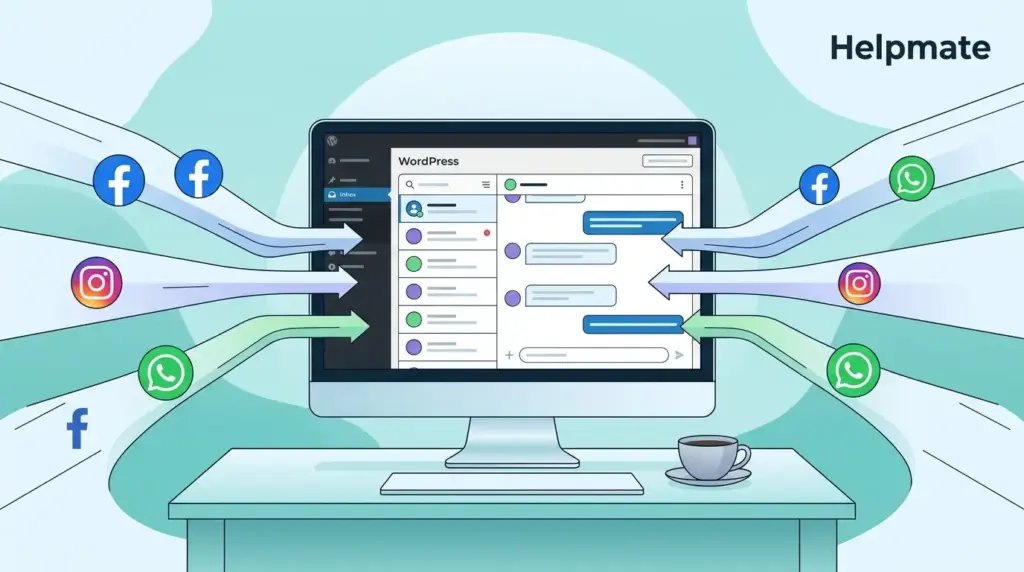
TL;DR: Managing Facebook, Instagram, and WhatsApp from separate apps creates these weird delays where you think you replied but actually just drafted it in your head. A unified WordPress inbox pulls every DM, comment, and live chat into one chronological stream. With automated replies handling the repetitive stuff and clean handoff to humans when things get complicated, teams respond faster without constantly switching contexts.
If you run a small business or agency, your phone probably buzzes with Instagram DMs, Facebook comments, and WhatsApp inquiries before you finish your coffee. Three different apps, three different notification styles, and this constant mental overhead of remembering which conversation happened where. It is not just annoying—it is the kind of workflow friction that buries urgent questions right when they matter most. Back in January, I remember watching a team member scroll through Facebook notifications trying to find a pricing question from what turned out to be yesterday. The prospect had already moved on. You do not need another external helpdesk subscription to fix this mess. You can manage all these conversations directly inside WordPress. In this guide, you will learn how a unified social inbox actually works in practice, how to connect your channels without losing your mind, and how automations keep response times low without hiring overnight staff.
Why Do Fragmented Social Inboxes Hurt Response Times?
Small teams often begin their day checking Facebook Messenger on a phone, Instagram DMs on a tablet, and WhatsApp on a desktop browser if they remember to open it. Switching between these native apps feels like a small inconvenience at first—maybe thirty seconds, maybe a minute. But the cost compounds in this weird way that is hard to measure until you actually track it. Each time someone opens a different interface, they must reorient to a new layout, notification style, and conversation history. This context switching fragments attention and erodes the focused mental state needed for high-quality support. By Thursday afternoon, everyone is just reacting instead of actually thinking through responses.
The business impact is straightforward but severe in ways that show up three weeks later when you review lost deals. A prospect asks about pricing via Instagram and waits hours for a reply because the DM was buried under Stories notifications. They are likely already evaluating a competitor by the time you find it. Support threads that start on Facebook comments and move to email lose continuity because no one sees the full exchange in one place. Without a shared workspace, two staff members may unknowingly reply to the same person with different answers. That happened to us during a product launch—one person said we offered refunds, another said store credit only. The customer screenshot both replies. Damaging trust and brand consistency is an understatement.
The root problem is architectural. Consumer social apps were designed for personal networking, not collaborative customer service. They lack ticket assignment, internal notes, status labels, and proper contact history. They also separate public comments and private DMs into unrelated tabs, which means a question asked under a post and a follow‑up sent privately live in different worlds. When your support workflow is spread across disconnected systems, you cannot measure response times accurately, identify bottlenecks, or coach your team effectively. A unified inbox solves this by pulling every thread into one chronological stream so context stays intact and nothing gets lost.
What Is a Unified Inbox Inside WordPress?
A unified inbox is essentially a single interface embedded in your WordPress admin that aggregates every incoming customer conversation regardless of where it started. Instead of logging into Meta Business Suite, WhatsApp Business, and Instagram separately—each with their own password requirements and session timeouts—you open one screen inside your site’s dashboard. You see Facebook Messenger threads, Instagram DMs, WhatsApp Business chats, and even on‑site live chat sessions in one combined or filtered list.
This architecture offers distinct advantages for WordPress site owners that become obvious around month three of using it. First, data residency stays under your control. Messages, contact profiles, and conversation histories are stored alongside your existing WordPress database on your own hosting environment. You are not locked into a third‑party SaaS with separate data terms, export limits, or per‑seat billing that scales aggressively as you grow. Second, the inbox connects natively to your existing WordPress CRM, user database, and commerce records. When a shopper asks about a delivery or a refund, you can see their WooCommerce, Easy Digital Downloads, or SureCart order history without exporting spreadsheets to another platform. I remember the first time we didn’t have to ask a customer for their order number because it was just… there. Three clicks instead of fifteen minutes of back‑and‑forth.
Third, it reduces tool sprawl and subscription fatigue. You already manage products, publish content, and process orders inside WordPress. Adding social conversations to the same dashboard means fewer logins, fewer browser tabs, and fewer monthly software bills. The inbox becomes a central nervous system for customer interaction rather than an isolated support silo that requires its own training and credentials. For agencies managing multiple client sites, this consolidation is even more valuable because each site maintains its own distinct channel connections and CRM data without cross‑tenant leakage. One dashboard per client, clean separation.
How Do You Connect Facebook, Instagram, and WhatsApp to Helpmate?
Helpmate connects to social channels through official APIs using OAuth authorization flows that you control from your own accounts. Inside the plugin, the Channels area provides dedicated sections for Facebook, Instagram, WhatsApp, and Live Chat. Each channel has its own configuration screen so you can manage permissions and sync settings independently.
For Facebook Messenger and Instagram, the process starts with your Meta Business account. You authenticate and select the specific Pages and accounts Helpmate should access. The plugin then ingests incoming DMs and comments through Meta’s official APIs in real time. For WhatsApp, you connect a WhatsApp Business API account—roughly fifteen minutes of setup if you have the credentials handy. Helpmate does not host Meta’s servers or attempt to replicate the consumer WhatsApp experience. It strictly reads and sends messages through the secured, authorized API connections you approve.
This setup preserves ownership and security. Your page credentials and OAuth tokens remain tied to your accounts, and you can revoke or refresh access from the Helpmate admin at any time without filing a support ticket. Because the integration runs natively inside WordPress, synchronization delays are minimal. When a customer sends a DM, it appears in your unified Inbox within moments—usually under a minute, sometimes faster depending on Meta’s API load. Ready for either an AI‑driven response or human review. You do not need to manage separate webhooks or middleware servers. Helpmate handles the plumbing so you can focus on the conversation.
Can You Filter DMs, Comments, and Live Chat in One Stream?
Yes. Helpmate’s unified Inbox is designed specifically to prevent the chaos of mixed channels during high‑volume periods. It provides a single conversation hub with powerful filtering so you never drown in irrelevant noise. The default view, labeled All Conversations, displays every active thread from every connected source in one chronological list. This is ideal for managers who need a high‑level view of team workload or for small teams where one person handles everything until around 3 PM when someone else takes over.
When you need focus, you can switch to filtered views without leaving the screen. The Chatbot filter isolates threads currently handled by the AI so you can audit automated responses. The Live Chat filter shows conversations that have been escalated to a human agent, creating a clear to‑do queue for your support staff. The Social Messages filter narrows the view to direct message threads from Facebook, Instagram, and WhatsApp. The Comments filter surfaces public comment threads where followers ask questions on your posts or ads. There is also a Tickets filter for form‑driven support tickets and an Archived view for closed conversations that may need future reference.
This flexibility matters during high‑volume periods like product launches or holiday sales. One team member can monitor only Instagram DMs to protect influencer partnerships while another handles live chat escalations from the website. A supervisor can review the All Conversations stream to spot unanswered threads or unusual spikes. Because every filter lives inside the same WordPress screen, changing your perspective does not require opening a new app, memorizing a different UI, or losing your place. We used this setup during our last Black Friday sale—three people handling different channels from one dashboard without stepping on each other.
How Do Auto‑DMs and Comment Replies Save Hours Each Week?
Automation handles the repetitive layer of social engagement so your team can reserve their energy for high‑value conversations that require empathy and negotiation. Helpmate’s Auto DM and Comment feature lets you configure automated response rules per connected social account. You define campaigns, set keyword or event triggers, and the system replies instantly when conditions match. If I remember right, we saved something like twelve hours the first week we turned this on properly.
Here is how this plays out in daily practice. A Facebook user comments on your post asking about store hours. Helpmate detects the keyword and posts a public reply with your hours and a link to your location page. An Instagram follower sends a DM asking for a product catalog. The bot delivers a curated list immediately, even at midnight when your team is offline. These are not spammy broadcast blasts. They are contextual, trigger‑based replies that feel helpful because they answer the exact question asked in the channel where it was asked.
Automations also qualify leads before a human ever sees them. A WhatsApp conversation can ask pre‑sale discovery questions, collect an email address, and tag the contact as a warm lead in the CRM. By the time your staff opens the thread, they have full context and can skip the repetitive discovery phase. This is particularly powerful for small teams and solopreneurs who cannot afford round‑the‑clock human coverage but still want to appear responsive outside business hours. The system captures intent immediately, and your team follows up with substance later. Three weeks ago, we woke up to six qualified leads that had been properly tagged overnight.
Ready to put your social replies on autopilot? Set up your automation rules in Helpmate and start reclaiming hours every week.
When Should a Bot Hand Off to a Human Agent?
Artificial intelligence is excellent at answering common questions, collecting information, and guiding users through structured processes. It is not good at handling anger, complex negotiations, or unique technical edge cases—at least not the current generation. Helpmate’s Behaviour settings define exactly when and how a chat transfers to a live human so that customers never feel trapped in one of those endless bot loops that make everyone frustrated.
Common handoff triggers include explicit user requests such as “talk to a person” or “speak with an agent.” Helpmate also supports frustration keyword detection and escalation buttons that you can embed in the conversation flow. When any of these triggers fire, the thread moves into the Live Chat filter inside the same unified Inbox. The human agent sees the complete conversation history, including what the AI already asked and answered. The customer does not need to repeat their name, order number, or issue description.
This continuity extends across channels. If a conversation starts on Facebook Messenger and the user later switches to WhatsApp, the CRM links both threads to the same contact record. The agent sees orders, past tickets, and conversation history regardless of which network the latest message arrived on. Internal Notes on the contact profile let agents leave context for future shifts, such as “refund approved, waiting on bank processing.” That level of context turns a reactive support desk into a relationship‑driven operation where every reply feels informed and personal.
How Does CRM History Tie Every Message to a Contact?
Every message that enters Helpmate is attached to a CRM contact record, turning anonymous social handles into known customer profiles. When a first‑time visitor starts a chat or sends a DM, Helpmate creates a contact automatically using available identifiers. Returning visitors are recognized and matched to their existing history. This means you are never replying to a faceless username. You are speaking to a person whose purchase history, preferences, and past issues are visible in the same screen.
The CRM stores per‑contact Notes, Orders from WooCommerce, Easy Digital Downloads, or SureCart, Leads captured through social campaigns and widget forms, scheduled Appointments, follow‑up Tasks, and any custom fields your team defines. If a customer asks about a refund status, an agent can open the Orders tab on the contact and see the purchase date, shipping provider, and delivery status without leaving the chat panel. That eliminates the back‑and‑forth typically required to verify identity and look up records. Last Tuesday, we processed a refund in under two minutes because everything was right there.
Segments allow you to group contacts by behavior or source for later outreach. For example, you could build a segment of everyone who asked about a specific product via Instagram DM and then send them a targeted email campaign with a limited‑time offer. Because the CRM lives inside WordPress, there is no arbitrary monthly contact limit imposed by an external SaaS vendor. Your data stays local, portable, and synchronized with your commerce stack. You own the relationship. No export fees, no “contact limit exceeded” notifications at 2 AM.
Frequently Asked Questions
Yes. Helpmate supports both public comments and private DMs for Facebook and Instagram. The Comments filter in your unified Inbox shows public comment threads, while the Social Messages filter handles direct messages. You can configure automated replies for both types.
Yes. Helpmate connects to WhatsApp through the official WhatsApp Business API. It does not work with a standard consumer WhatsApp app. Once your Business API account is authorized, DMs flow into the same unified Inbox as your other channels.
The core unified Inbox and channel connections are available in the free version of Helpmate. Some advanced features, such as Live Chat human handoff, may require an upgrade. You can download Helpmate – Live, Social & AI Chat with Built-in CRM from the WordPress plugin directory to start.
Yes. Helpmate includes Teams & Roles settings inside the Control Center. You can assign role‑based access so that support staff see the Inbox and CRM while limiting billing or module configuration to admins.
No. Helpmate uses official OAuth and API tokens to communicate with Meta and WhatsApp. It does not store your personal login passwords. You authorize the connection, and the platform uses secure tokens to send and receive messages.
Because Helpmate links every conversation to a CRM contact record, both the Instagram thread and the WhatsApp thread are attached to the same profile. Your team sees the full cross‑channel history, so the customer never has to repeat information.
No. Helpmate is built for inbox management and reply automation, not organic content publishing. It handles DMs, comments, and chat. For post scheduling, you will need a dedicated social media management tool.
Conclusion
Managing social conversations should not require a separate tab for every platform. A unified WordPress inbox gives you speed, context, and control by bringing Facebook Messenger, Instagram DMs, WhatsApp chats, and live chat into one place. Fragmented apps slow response times and hide critical messages in ways you do not notice until you lose a deal. A WordPress‑native inbox keeps data local and integrated with your store. Channel connections use official APIs that you authorize and control. Filters let you view all conversations or focus on one channel at a time. Automations answer common questions instantly while CRM history powers human follow‑ups.
If you are ready to stop context switching and start managing every social message from your WordPress dashboard, install Helpmate and connect your first channel today. For advanced handoff and automation rules, explore the Pro options that match your team’s size.